Thursday, April 23, 2015

Oil Change Scam

"If it sounds too good to be true, it probably is." 
 
Pennzoil Platinum is an excellent full synthetic motor oil, a great way to enhance and prolong the life of your motor vehicle. (See Why would I upgrade to a synthetic motor oil?) Unfortunately, the business ethics of Pennzoil, a subsidiary of Shell, do not match the quality its products.

A common promotion for Pennzoil Platinum is a certificate (coupon) supposedly good for $20-25 off on your next oil change (as compared to perhaps $10 off on your current oil change) that will be sent to you by mail. That promise sounds too good to be true, and for many people it is.

One of the principal benefits of full synthetic oil is extended oil change intervals, which helps to offset the much higher cost of synthetic oil. With full synthetic oil many people need only one oil change per year. But the fine print on the Pennzoil certificate limits it to 180 days. In other words, to take advantage of the certificate, you probably have to buy an oil change you don't need, wasting money (on the order of $80) and the planet. If you're going to change oil more than once a year, you're probably better off sticking to regular motor oil.


So don't fall for an empty promise. Instead stick to promotions that apply at the time of service even if they don't seem as attractive.

Notes

  • Other good full synthetic motor oils include Amsoil, Castrol Edge, Mobil 1, Red Line, Royal Purple, and Valvoline Synpower.
  • Watch out for off-brand "synthetic" oils that may not measure up to the leading brands.
  • Watch out for unscrupulous garages that charge for synthetic oil but actually use cheap regular oil and filter, or don't change the filter.
Update: BBB Complaint was simply ignored by the company, now a negative mark against it.

Thursday, April 9, 2015

Computer Headset

Plantronics .Audio 478
Headsets are similar to headphones, except headsets tend to be optimized for speech, with microphones needed for chatting, speech recognition, gaming, etc, whereas headphones tend to be optimized for music.

When choosing a computer headset, there are a number of important considerations:
  • Analog versus Digital: USB (digital) connection will generally deliver better quality audio than analog jack connection.
  • Stereo versus Mono: Both comfort and audio quality tend to be better with stereo headphones even with mono sound.
  • Type: The choice of over-the-ear, on-the-ear, or in-the-ear also affects both comfort and audio quality. Many people find lightweight on-the-ear to be the most comfortable, especially for extended wearing, with good quality audio without blocking of ambient sounds.
  • Noise Cancellation: Good microphones can cancel ambient sounds making voice pickup clearer, especially with a boom design that puts the microphone hear the mouth.
Of the many manufacturers making computer headsets, Plantronics has a long and distinguished record of making good products, and its on-the-ear .Audio 478 is no exception, delivering good sound and comfort at an affordable price point, with the additional advantage of folding into a compact package for travel. Recommended.

Notes:

  1. While the sound quality of the .Audio 478 is good, it's optimized for speech, not music.
  2. When ambient sound is an issue, over-the-ear (noise isolating) may be a better choice than on-the-ear.

Wednesday, April 8, 2015

CD-R Blanks

Verbatim DataLifePlus AZO CD-R
It's getting harder and harder to get decent quality CD-R blank discs. Most of the products left on the market are cheap junk that don't work reliably.

Arguably the best quality CD-R blank discs are Verbatim DataLifePlus AZO. To avoid lower quality Verbatim discs, be sure to get AZO. (This also applies to DVD-R and DVD+R blank discs.)

As of this writing, the best source for these discs is Amazon.

Monday, April 6, 2015

Calibrate Your Monitor

Datacolor Spyder Calibration
Unless there are obvious problems, most people just assume their monitors work correctly. But the truth is that mass produced monitors are usually significantly off in terms of color balance, too green, too blue, etc, and most people just don't notice unless they see two monitors side by side with the same image. In addition to showing us wrong colors, incorrect color balance can make printing images an exercise in frustration.

Fortunately, monitor calibration is an easy way to solve the problem, and should be done by anyone who cares about color. Unfortunately, trying to do it by eye (e.g., Windows Display Color Calibration) is crude and imperfect at best. What's needed for good results is a colorimeter, a hardware device that can accurately measure the color of a monitor.

Of the many colorimeters available, one of the best and most affordable is the Datacolor Spyder, which can be purchased new for as little as $60 (basic Express version). If you just want to calibrate once, a local camera shop may offer calibration as a service, or you can inexpensively rent the the full SpyderHD package from BorrowLenses.

Highly recommended. You'll probably be amazed by the difference.

Notes:

  1. Works for both Windows and Mac.
  2. Burn in a new monitor for at least 24 hours before calibration.
  3. Warm up a monitor for at least an hour before calibration.
  4. Re-calibrate every 30-90 days for best results because color balance can change as a monitor ages.
  5. Windows can interfere with calibration. See Windows Monitor Calibration Issue.
  6. An option that can give even better results with a supported colorimeter is (free) DisplayCAL (Open Source Display Calibration and Characterization powered by Argyll CMS) software.

Sunday, April 5, 2015

How To Restore Mozilla Firefox

Mozilla Firefox
Mozilla Firefox is an excellent Web browser, fast and capable, but you might suddenly find that your settings (bookmarks, tabs, plugins, etc.) have gotten corrupted or even lost. This unfortunate problem can normally be fixed with Windows Vista or Windows 7 using the following procedure:
  1. Close any Firefox windows that might be open.
  2. Click Windows Start at left end of Task Bar, put the following in Search Box or Run, and press [Enter]:
         %LOCALAPPDATA%\Mozilla\Firefox\Profiles
    That should open an Explorer window with at least one Profile folder.
  3. Right-click on a Profile folder, and then click "Restore previous versions" in the pop-up menu to open the Properties window.
  4. Click to select the top (most recent) version, and then click "Restore...".
  5. That should pop up a confirmation window ("Are you sure you want to restore..."). Click Restore.
  6. Windows should then copy a bunch of files to restore Firefox, finishing with
    "The folder has been successfully restored to the previous version."
  7. Click OK to close the message, then close the Properties and Explorer windows.
  8. Launch Firefox.

Notes:

  1. "Restore previous versions" does not exist in Windows 8. Use File History instead.
  2. This procedure is covered in Windows 7 Help and Support under "Recover lost or deleted files" in the section "To restore a file or folder to a previous state". 
  3. This only works if you have System Restore enabled and/or have used Windows Backup.
  4. You can try restoring an earlier version if necessary.
  5. If this doesn't work, you can start over by closing Firefox and deleting the Profile folder.
See also How To Restore Google Chrome.

PC Keyboard in Android

PC keyboard in Android
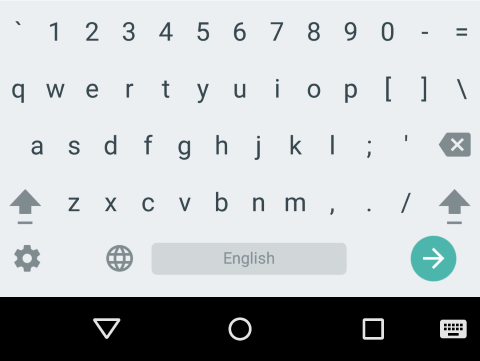
Good as it is, the Google keyboard in Android can be frustrating if you need to enter mixed letters and numbers. You must either slowly long-press numbers, or keep switching back and forth between letters and numbers 3-row layouts. Wouldn't it be nice to have a 4-row layout with both letters and numbers like your PC?

Happily, there is a way (starting with Android 4.2) to have this cake and eat it too, by enabling 4-row "PC" layout, with an easy way to toggle between 3-row and 4-row layouts. Here's how to do it in Lollipop (Android 5):
switch layout
  1. Open Settings > Language & Input.
  2. Make sure Current Keyboard is set to Google Keyboard.
  3. Open Google Keyboard.
  4. Open Appearances & layouts.
  5. Open Custom input styles.
  6. Click + to add a style.
  7. Select desired Language, select PC for Layout, then Add.
  8. Return to Google Keyboard Settings.
  9. Select Languages.
  10. Turn Use system language off.
  11. Turn on your new PC layout (in addition to your standard layout).
  12. Close Settings.
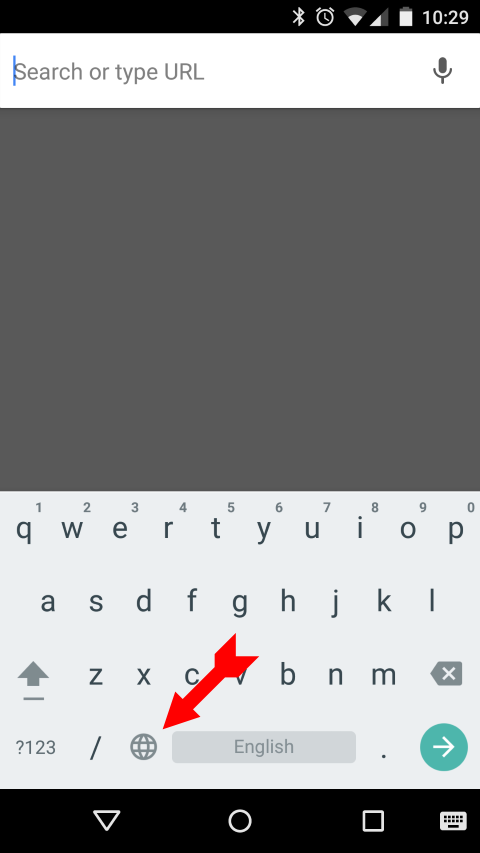
You should now have a globe icon just to the left of the space-bar on your keyboard. Selecting (touching) that globe icon should toggle between your active layouts.

Friday, March 27, 2015

Wireless HDTV Video (update)

Microsoft Wireless Display Adapter
See Wireless HDTV Video (original)

The ability to beam video to a HDTV screen without wires has been promised for quite some time, but the product methods on offer (DLNA, Miracast, Wi-Fi Direct) have proved to be disappointing, complex and/or problematic. This update adds an additional option.

Microsoft Wireless Display Adapter

Promising easy setup and compatibility with both Android (4.2.1 and later) and Windows (8.1 and later), Microsoft Wireless Display Adapter comes close to hitting the mark. Setup is indeed easy (though not entirely free of problems, since more than one connect attempt may be needed), and audio sync and video quality are quite good (significantly better than Chromecast), but motion tends to be a bit jerky (1080p video tested over a short distance from Windows 8.1 with Intel i7 processor, Intel HD Graphics 5500, and Intel 802.11ac adapter), clearly not as good as HDMI cable connection. (Frames are probably being dropped to maintain streaming.)

Google Chromecast
Google Chromecast

With mighty Google behind it, inexpensive Chromecast would seem a sure winner. But right out of the box it can be problematic because it insists on network capabilities (access to Google Public DNS servers) that make it incompatible with some wireless routers. (See Chromecast Router Compatibility) Past that point things can look good at first blush, as when casting the screen of an Android mobile, or streaming YouTube video. But push it a bit harder and warts appear. Local video (from Android mobile or Chrome browser) is limited to 720p and relatively low bit rate by default, with poor quality, and even when pushed to its limits, quality is still only mediocre at best. So if you care about video quality, Chromecast is really just another Internet streaming option.

DLNA

Many "smart" HDTV sets claim DLNA Player support, which should make it possible to beam video to them over a network connection (wired or wireless), and the ubiquitous Windows Media Player includes DLNA Server support. (See Media Streaming with Windows 7) But try to make it work and you're very likely to run into compatibility problems, since many HDTV sets are very fussy about what video formats they will (and will not) play, and Windows Media Player does not support transcoding between formats. (While there DLNA servers that can transcode on the fly, they can be difficult to set up, and the resulting quality is often mediocre. Your best bet is to use Handbrake to transcode to MPEG-4 in advance.) But even when it works, video quality is noticeably inferior to a wired HDMI connection.

Bottom line: Beaming of HDTV video without wires remains a work in progress.
  • For best quality use a wired HDMI connection.
  • If you must have wireless, Microsoft Wireless Display Adapter is the best bet.

Friday, March 20, 2015

Disk Activity Light

Unfortunate casualties of the race to produce ever cheaper computers include hardware activity lights for things like Wi-Fi, Bluetooth, and (perhaps most importantly) disk activity.

Without a disk activity light you have no way of knowing if anything is going on in a system if nothing is happening on the screen. There might be a legitimate system update that's just taking much longer than you expected, or there might be malware (virus) wreaking havoc. You can open Task Manager to see what's happening (on the Performance tab), but that's not as convenient and persistent as a proper disk activity light.

A good substitute for a missing hardware disk activity light is the small freeware DiskLED. It will reside in your System Tray and light up (as in the picture) whenever there is disk activity on any drive. Thanks to excellent design, DiskLED can also be used to monitor other system activities. It can even be used remotely.

Highly recommended.

Wednesday, March 18, 2015

ThinkPad T450s Review

ThinkPad T450s

Introduction

The ThinkPad T450s is one of the best new ultrabooks. While it's not as thin as some, it's still quite compact, much easier to service than thinner machines, and the Full HD IPS screen is a standout feature.

This review is based on a production ThinkPad T450s, Machine Type 20BX, Product ID 20BXCTO1WW.
  • Intel Core i7-5600U Processor
  • Windows 8.1 Pro 64
  • 14.0" FHD (1920 x 1080) IPS screen
  • 720p HD Camera
  • Intel HD Graphics 5500
  • 4 GB DDR3L - SDRAM 1600MHz Base
  • Fingerprint Reader
  • 500GB Hard Disk Drive, 7200rpm, 2.5"
  • ThinkPad Battery 3 cell Li-Polymer (23.2Whr) Front
  • ThinkPad Battery 3 cell Li-Polymer (23.2Whr) Rear
  • Country Pack 45W AC adapter United States (2pin)
  • Intel 7265 AC/B/G/N Dual Band Wireless + Bluetooth Version 4.0
After receipt (because upgrading was less expensive than buying from Lenovo):

Construction

Quality of T450s construction is not up to old ThinkPad standards, with some obvious cheapening, but is still pretty good. Annoyances include the difficulty of prying off the bottom cover (after removing 8 screws) to get to the inside, and fingerprint-revealing textured plastic instead of the old rubberized finish. But it's quite solid, no flexing, and quite compact.

Connectivity

Port layout is reasonably good on both sides with nothing on the back. All USB ports are 3.0 with excellent performance. Standard Ethernet port. But Mini DisplayPort means you may have to buy and carry an easy-to-lose dongle.* Wi-Fi performance (Intel 802.11ac 2x2) seems better than earlier generation 802.11n Intel cards, even those with 3x3. Bluetooth connections are fast. Speakers are decent but nothing to write home about. Webcam quality is improved over earlier generations, but still struggles in low light. Fingerprint reader is a big improvement. (Thank you, Apple.)

Performance

The good news is that the Broadwell i7 in the T450s finally proves to be a bit faster than the Sandy Bridge i7 (T420s) on processor intensive tasks like video encoding, despite an ultra low voltage processor running a little slower. The machine is cool and silent most of the time, with only a soft blowing of air under heavy load.

Memory

4 GB of memory is soldered to the main board and there's only one SO-DIMM slot. While you can add an 8 GB SO-DIMM for 12 GB total, that would mean a third of the memory would work in single channel mode, which can have a pretty big impact on performance (as much as 20-30%) especially since the integrated graphics adapter uses part of main memory (reducing available memory). So if you care about performance you'll have to stick with 8 GB, which can be marginal for things like Ultra HD video editing. (The performance impact, of course, also applies to machines with only the base 4 GB memory. The promised NVIDIA 940M graphics option is not yet available.)

Screen

The 1920x1080 IPS screen may take some getting used to, but really is a good deal better than TN screens, and is pretty close to proper calibration out of the box. (Be sure to burn in the screen for at least 24 hours before making any judgements.)

Keyboard

The island keyboard is pretty good for what it is, but the layout still suffers as compared to the classic ThinkPad keyboard. Layout of Home End Insert Delete and PrtSc are poor, and other keys like Pause/Break are missing entirely, now only available as Fn key combinations (like Fn+B for Break) that are not marked on the keys. Also annoying is the lack of hardware status lights (hard disk, Wi-Fi, Bluetooth, charging). You can rely on the Windows Task Bar for wireless and charging, but you'll need to install something like DiskLED (which works well) for disk activity. Keyboard backlight is usable (despite some annoying light bleed from the top row), but not as good as the classic ThinkLight.

Pointing

TrackPoint performs as expected. TouchPad is greatly improved over recent ThinkPad generation with the return of TrackPoint buttons, nice smooth surface, and good response. Bluetooth works quite well with the ThinkPad Bluetooth Laser Mouse (recommended).

Power

With just the standard 2nd battery, not the extended battery with big bulge on the bottom, the T450s can still be used on and off through an entire day without running out of battery power. The supplied power adapter is pretty small, but only 45W, so can't fast charge when the system is under load. If you care about fast charging you should get the optional Slim 65W Adapter.

Summary

A mostly welcome return to ThoinkPad form, with a very good IPS screen, and finally enough ultra low voltage processor power to measure up to Sandy Bridge.

* Belkin Mini DisplayPort to HDMI Adapter is available at low cost from B&H.

Friday, March 6, 2015

Secure Online Transactions

The press is filled with stories on online "hacks" (actually cyber attacks) compromising millions of credit card numbers and raising serious risks of fraud and identity theft. So what to do? Fortunately, it is possible to have very safe online transactions.

Most online risk comes from trusting your credentials (e.g., credit and debit card numbers) to third parties. The best way to avoid that problem is with a controlled payment number service like Citi Virtual Account Numbers. PayPal is another good option. Or use an electronic payment service like USBank Bill Pay Online. Regardless, to minimize this risk, change your credit and debit card numbers at least annually.

Bill Pay Online is more secure than paying by credit card, debit card, merchant EFT (ACH), or even paper check, because you initiate and have control over the entire payment process, unlike a credit or debit card where you can't easily stop someone from charging you.

Online banking is a different matter. If you follow recommended security practices (strong, unique* passwords, changed regularly) online banking through https connections to banks with good security policies does not increase risk over regular banking. ATM machines are actually the weakest link in the banking chain (example).

The best way to follow good password practices is to use a password manager like KeePass, which is free, cross-platform, and open source. (Open source is essential to ensure good security. See Manage Passwords on PC, Android, and more.) Use automatic cloud sync (e.g., Dropbox, Google Drive, OneDrive) to backup your password file and sync it to multiple devices. (Because your password file is securely encrypted, there's essentially no cloud risk.)

* Never, ever, use the same password for more than one purpose.